
Follow these steps to install the eConstruction application and integrate it into your workspace.
Step 1: Install the eConstruction App
-
Click this link to Install the eConstruction App.
-
Once the installation is initiated, navigate to your monday.com account.
-
Click your Profile → Administration → Apps → Manage Apps.
-
Search for eConstruction in the search bar to confirm it is listed under your installed apps.

Step 2: Add eConstruction to a Workspace
-
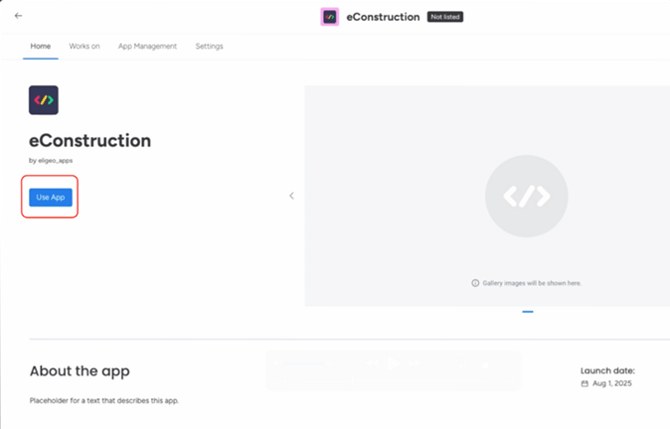
On the Manage Apps page, click on the eConstruction App icon.
-
Click the Use App button.
-
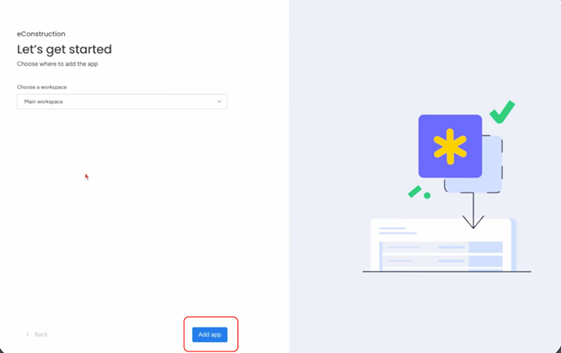
A "Let’s get started" screen will appear. Select the specific Workspace where you want to add the application.
-
Click Add app.
-
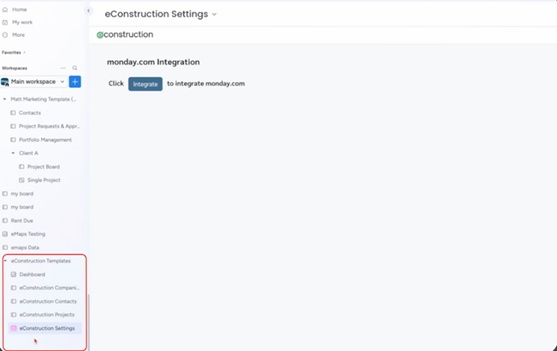
This action will automatically install the eConstruction templates into your chosen workspace.
Step 3: Integrate with monday.com
To ensure the app can sync data correctly, you must authorize the integration.
-
Navigate to the newly installed templates in your workspace and select eConstruction Settings.
-
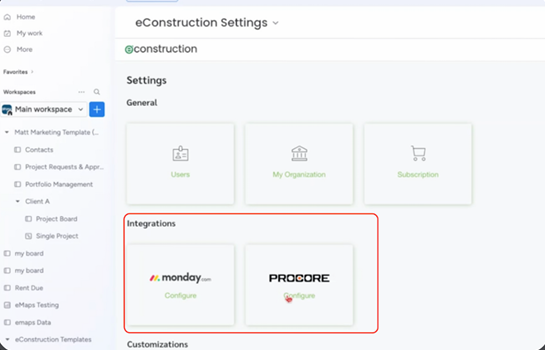
Go to Integrations Section and select monday.com.
-
Click the Configure button to connect your account.
-
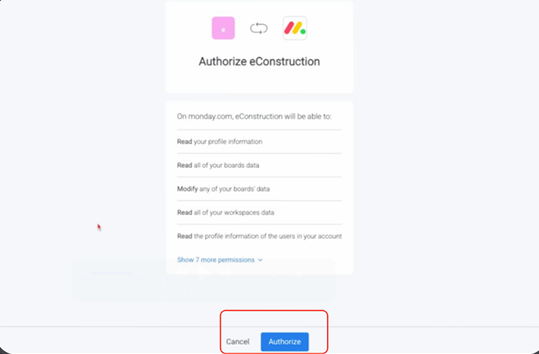
An authorization window will appear listing the permissions required, such as reading profile information and board data.
-
Click Authorize to complete the setup.
Next Steps: For detailed instructions on configuring your integrations with monday and other tools like Procore or setting up your team, visit our knowledge base at https://help.eligeo.com/integrations-admin-setup.