
You can create custom fields that automatically calculate values based on other numeric fields in a module (e.g., calculating "Profit" by subtracting "Cost" from "Total").
Steps:
-
Navigate to Settings from the main menu.
-
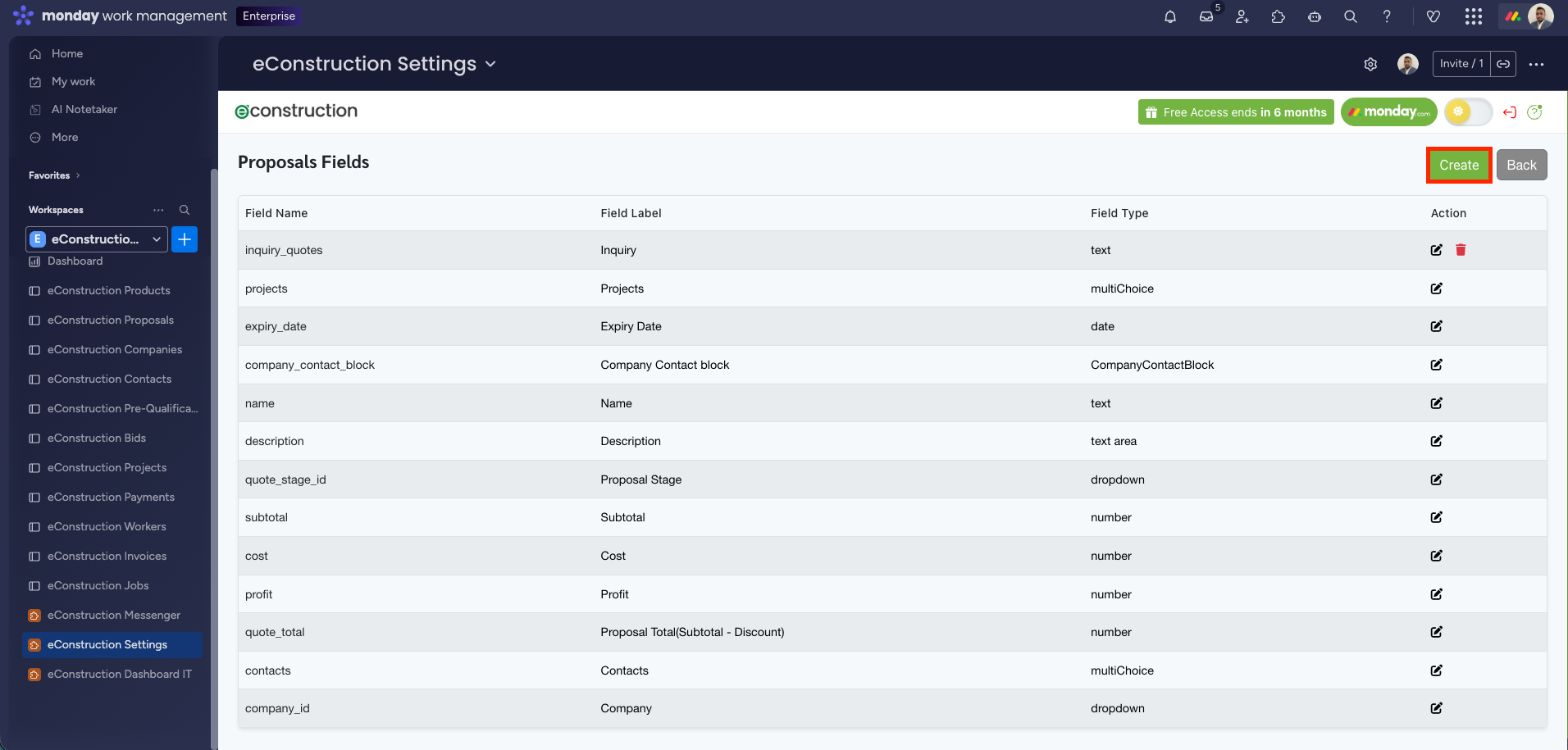
Scroll down to the Customizations section and select the module you want to modify (e.g., Proposals).
-
Click the Fields link.
-
Click the Create button in the top-right corner.
-
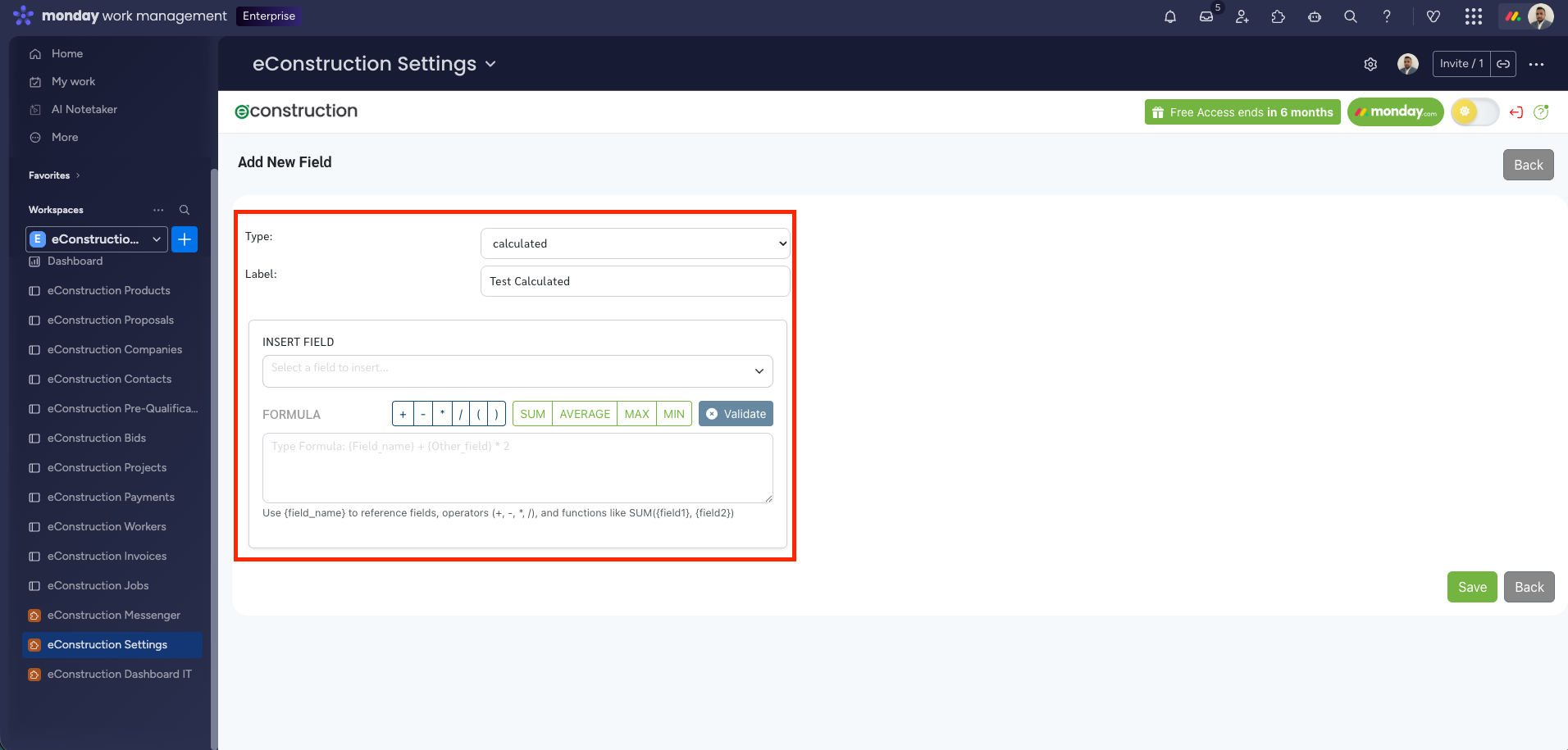
In the "Add New Field" modal, select calculated from the Type dropdown.
-
Enter a Label for the field (this is the name users will see).
-
Build your formula in the Formula box:
-
Use the Insert Field dropdown to select existing variables (e.g.,
Cost,Subtotal). -
Use the operator buttons (+, -, /, *****) or typed symbols to create your equation.
-
Use function buttons like SUM, AVERAGE, MAX, or MIN for complex calculations.
-
-
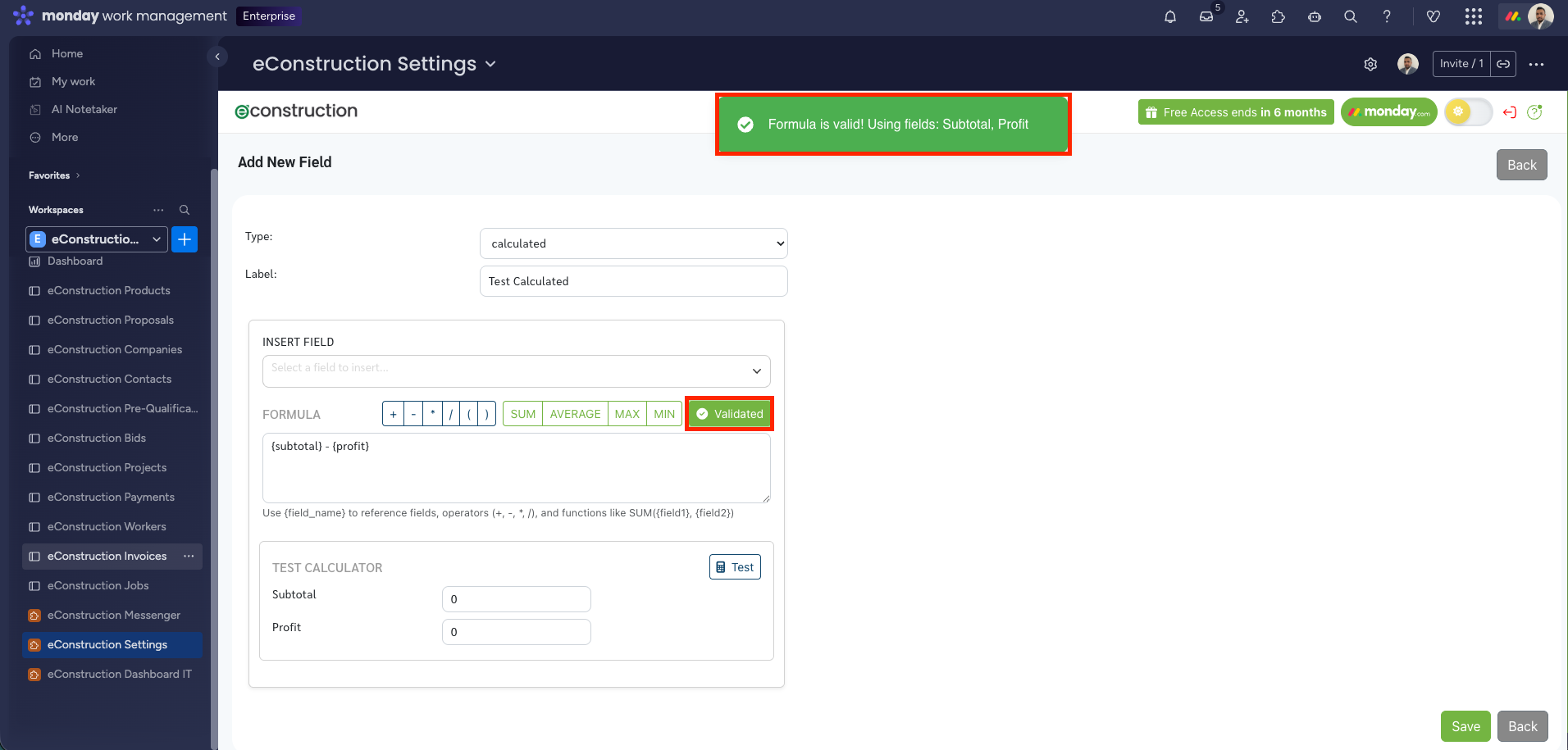
Click the Validate button. You must validate the formula before the system allows you to save.
-
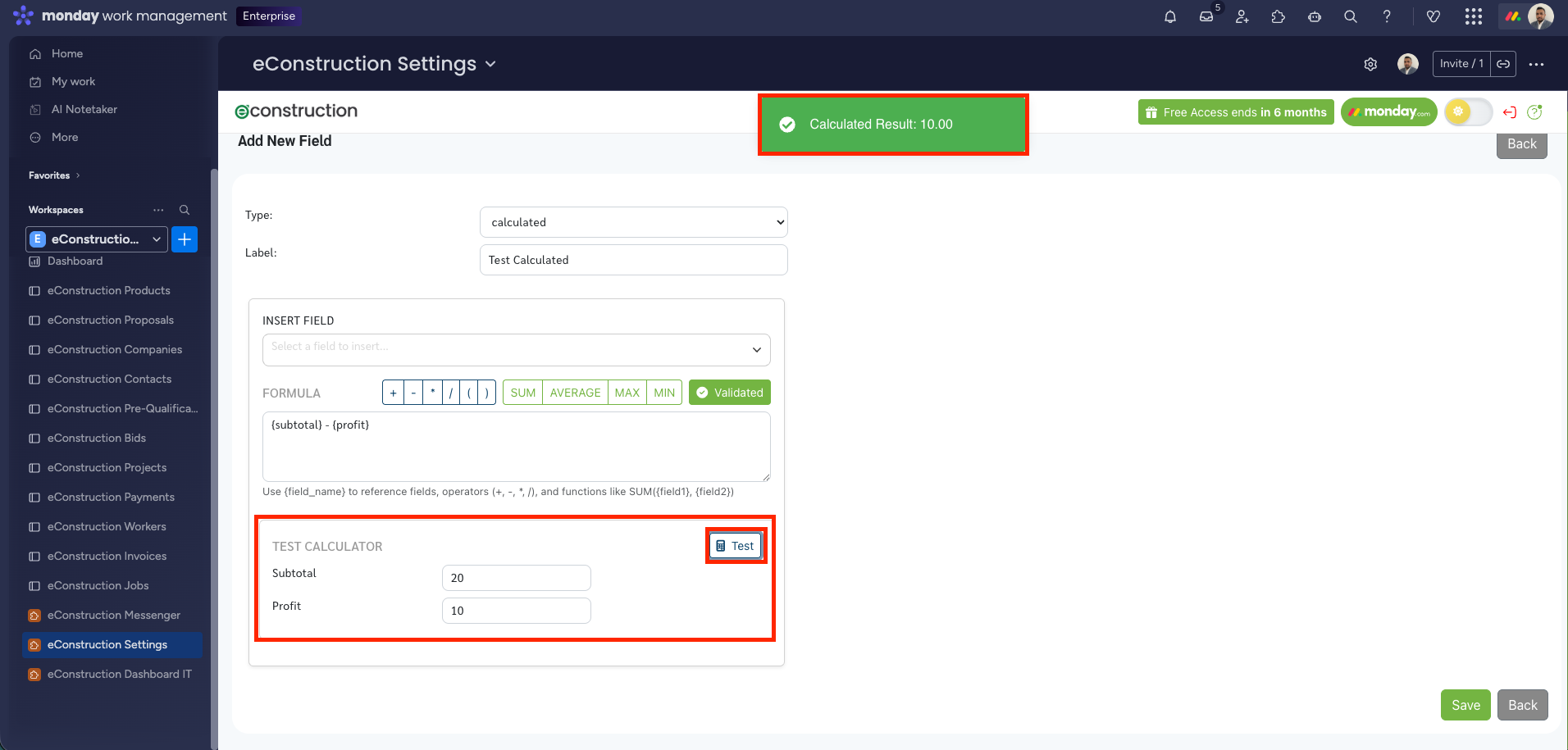
(Optional) Use the Test Calculator that appears below the formula. Enter dummy values into the fields to verify the calculation behaves as expected.
-
Click Save.
-
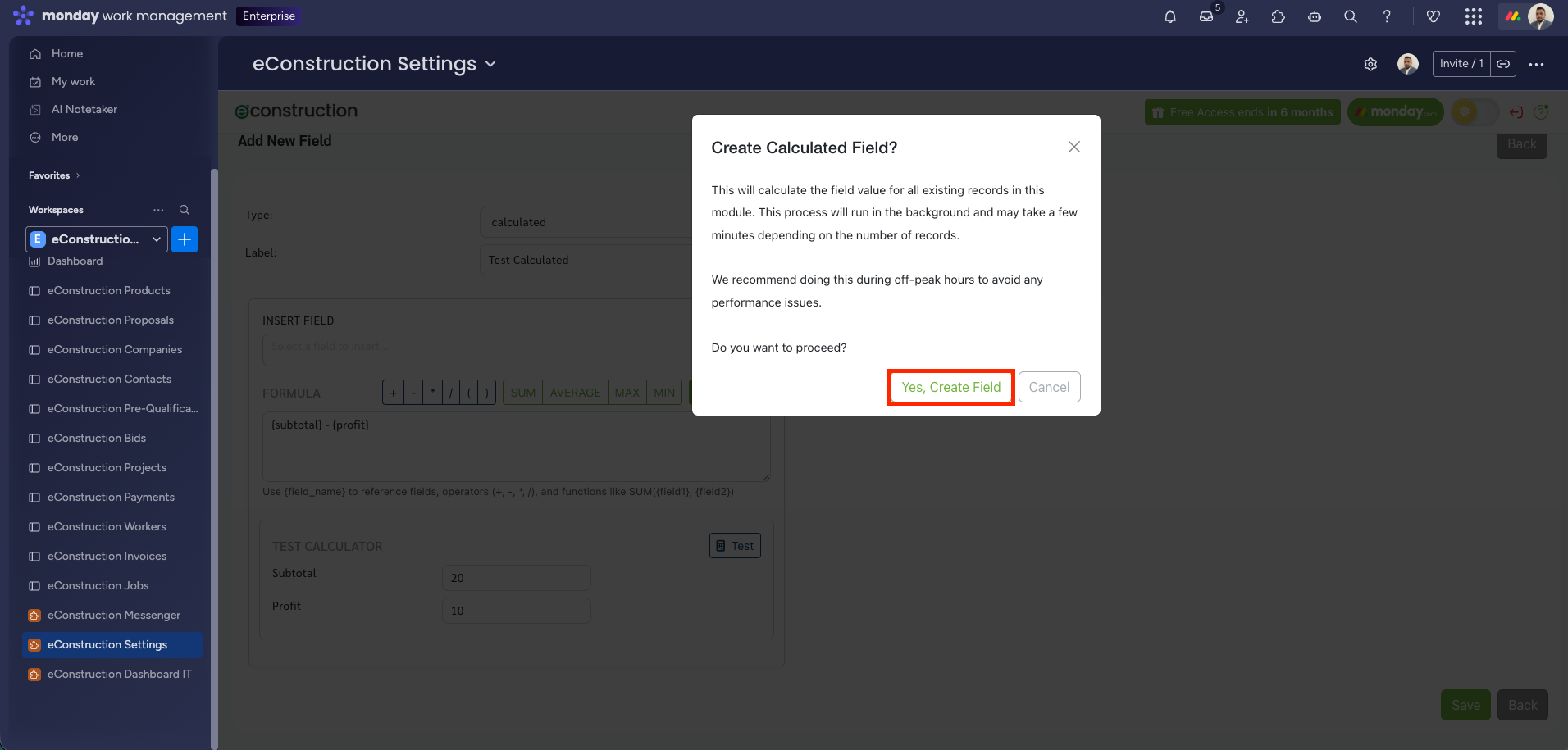
A confirmation window will appear warning that this action will calculate values for all existing records in the database. Click Yes, Create Field to confirm.
-
Your new field is now created. To make it visible to your team, add it to your layouts (See How to Customize Module List Layouts).